
Skip to content
ShopentlyLearn

Footer · Footer section

Click the small pencil beside the name. Enter a name and save with the save icon or Enter; Escape cancels. The name is an administrative label, not public footer text.

Section settings

Choose Footer and click a section or column name to open its settings. Clicking the name does not start renaming.
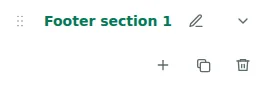
Section settings — Choose Footer and click a section or column name to open its settings. Clicking the name does not start renaming.
Section settings

Rename: Footer section

Click the small pencil beside the name. Enter a name and save with the save icon or Enter; Escape cancels. The name is an administrative label, not public footer text.
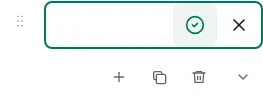
Rename: Footer section — Click the small pencil beside the name. Enter a name and save with the save icon or Enter; Escape cancels. The name is an administrative label, not public footer text.
Rename: Footer section

Duplicate section

Copy creates an adjacent section with repeatable elements and translations. Singleton controls, including Shopently Mark, stay in their existing position.
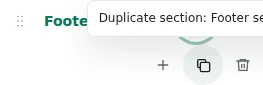
Duplicate section — Copy creates an adjacent section with repeatable elements and translations. Singleton controls, including Shopently Mark, stay in their existing position.
Duplicate section

Create column

The plus in the section heading adds a column. Each section supports up to 12 columns; the footer supports up to 48 columns and 12 sections.
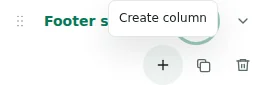
Create column — The plus in the section heading adds a column. Each section supports up to 12 columns; the footer supports up to 48 columns and 12 sections.
Create column

Remove row

Delete requires confirmation. Elements from a deleted section move to the first remaining column; elements from a deleted column move to the last column of that section. The final container cannot be deleted.
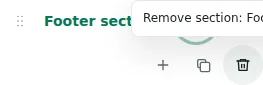
Remove row — Delete requires confirmation. Elements from a deleted section move to the first remaining column; elements from a deleted column move to the last column of that section. The final container cannot be deleted.
Remove row

Collapse / Expand

The arrow collapses or expands the list. This changes the editor view only; it does not hide content from customers.
Collapse / Expand — The arrow collapses or expands the list. This changes the editor view only; it does not hide content from customers.
Collapse / Expand

Move section

Drag the handle before a name to reorder sections or columns. Columns move within their section, together with their contents.
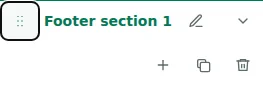
Move section — Drag the handle before a name to reorder sections or columns. Columns move within their section, together with their contents.
Move section